Unlock the full potential of your gaming PC by connecting it to your TV for an immersive, relaxed, and social experience. This comprehensive guide, tailored for busy gamers who balance work and life, navigates the complexities of a gaming PC TV setup. Discover how to optimize display settings, choose the right peripherals, minimize input lag, and select games that shine on the big screen. We address common pain points like performance issues and budget-friendly upgrades, ensuring you get the best value and enjoyment from your hardware. Whether you're looking to unwind with a casual game, dive into cinematic narratives, or host a local co-op session, understanding the nuances of a PC-to-TV connection is crucial. This article provides practical solutions and up-to-date advice, helping you achieve a seamless, high-performance gaming environment without unnecessary hype, allowing you to stay current and enjoy gaming on your terms.
Related games- Guide How To Make Your Roblox Username Perfect
- Guide to Gross Roblox Games For Adult Gamers
- Guide How to Ban Someone on Roblox Quickly
- Unlock 15 USD Roblox Gift Card Maximize Your Robux
- Guide to Roblox Ladders: Climb Higher Play Smarter
How do I connect my PC to my TV for gaming without issues?
Connecting your gaming PC to your TV for an optimal experience primarily involves using a high-quality HDMI cable, ideally HDMI 2.1 for 4K 120Hz support. Ensure both your graphics card and TV are compatible with the cable's standard. Go into your TV's settings and enable 'Game Mode' to significantly reduce input lag. Then, configure your PC's display settings to match your TV's native resolution and highest supported refresh rate. Update your graphics drivers to the latest version for best performance and compatibility.
What are the best wireless controllers for PC gaming on a TV?
For comfortable couch gaming, top choices for wireless controllers include the Xbox Wireless Controller and PlayStation DualSense or DualShock 4. The Xbox controller offers excellent PC compatibility via its proprietary wireless adapter or Bluetooth, while PlayStation controllers connect well via Bluetooth. Both provide strong ergonomics and features. Consider third-party alternatives like the Nintendo Switch Pro Controller if you prefer its layout, or a high-end option like the Xbox Elite Series 2 for customizable inputs. The key is low latency and reliable connectivity from your seating position.
How can I reduce input lag when gaming on my TV with a PC?
Reducing input lag is crucial for a responsive gaming PC TV setup. Always activate 'Game Mode' on your TV; this disables most post-processing effects that cause delay. Use a certified, high-quality HDMI cable. Ensure your PC's display settings are correctly configured for your TV's native resolution and refresh rate. Disable any additional motion smoothing or image enhancement features on your TV. For compatible setups, enable variable refresh rate technologies like G-Sync or FreeSync on your PC and TV. Keeping graphics drivers updated also contributes to a smoother experience.
Is a 120Hz TV necessary for a good PC gaming experience?
While not strictly 'necessary' for all games, a 120Hz TV significantly enhances the PC gaming experience, especially for fast-paced titles. A higher refresh rate means smoother motion and reduced screen tearing, providing a more fluid and responsive feel, particularly if your PC can consistently output high frame rates. For competitive gamers or those sensitive to motion blur, a 120Hz TV (paired with an HDMI 2.1 GPU and cable) is highly recommended. For cinematic single-player games or casual play, 60Hz is often perfectly adequate.
How do I set up Steam Big Picture Mode for my TV PC gaming?
Steam Big Picture Mode is designed for TV-friendly navigation. To activate it, launch Steam on your PC, then click the 'Big Picture Mode' icon in the top right corner of the client (looks like two opposing arrows). Alternatively, you can connect your controller, and Big Picture Mode will often prompt you to enter it. It provides a full-screen, controller-optimized interface for browsing your game library, launching games, and accessing settings from the comfort of your couch. Ensure your PC is connected to your TV and the display is extended or duplicated for the best experience.
Can I use my old TV for a gaming PC setup, or do I need a new one?
You can certainly use an older TV for a gaming PC setup, but your experience will be limited by its capabilities. Older TVs might lack 4K resolution, HDR, or high refresh rates (above 60Hz), and often have higher input lag. For casual gaming or less graphically demanding titles, it can work fine. However, for a truly immersive and responsive modern PC gaming experience, a newer TV with 'Game Mode,' low input lag, 4K resolution, and ideally 120Hz refresh rate with HDMI 2.1 is recommended to unlock your PC's full potential.
What are common audio issues with a PC to TV gaming setup and how to fix them?
Common audio issues include no sound, poor quality sound, or audio desync (sound lagging behind video). First, ensure your TV is selected as the default audio output device in Windows Sound Settings. Check your HDMI cable; a faulty cable can cause audio drops. If there's desync, look for an 'audio delay' or 'lip sync' setting on your TV and adjust it. Sometimes, disabling audio enhancements in your PC's sound settings or ensuring your graphics drivers are updated can resolve problems. If using an external sound system, verify it's correctly connected to your TV's audio output (e.g., eARC/ARC HDMI port, optical).
Life moves fast, and for many gamers, the days of marathon sessions at a desk are often balanced with jobs, families, and other responsibilities. Yet, the desire to unwind, dive into incredible virtual worlds, and connect with friends remains strong. If you've been thinking about moving your PC gaming experience from a cramped desk monitor to the sprawling comfort of your living room TV, you're not alone. The 'gaming pc tv setup' is becoming increasingly popular, offering a more relaxed, cinematic, and social way to play. US gamers, with an average age of around 36, often seek ways to enjoy their passion without sacrificing precious time or comfort. This guide is for you – the gamer who wants performance without the fuss, value for money, and a setup that fits seamlessly into a busy life. We'll tackle everything from basic connections to advanced optimizations, helping you transform your gaming space and make the most of your hardware. As of this month, a significant 87% of US gamers play regularly, often for 10+ hours a week, and many are exploring new ways to play, including social and cozy games on larger displays. Let's make that big-screen dream a high-performance reality!
Why Choose a TV for Your Gaming PC Setup?
Opting for a TV over a traditional monitor for your gaming PC setup brings a host of benefits, especially for adult gamers who value relaxation and shared experiences. The most obvious advantage is the sheer size of the screen, offering a far more immersive visual feast for cinematic single-player games or sprawling open worlds. It also encourages a more comfortable, couch-based gaming posture, perfect for unwinding after a long day. Beyond comfort, TVs are excellent for social gaming, making local co-op or party games with friends and family much more engaging. This month, social gaming continues to trend upwards, with titles like Palworld and Helldivers 2 highlighting the desire for shared experiences. A TV setup allows your gaming to be a more inclusive living room activity rather than an isolated desk experience.
What's the Best Way to Connect Your PC to a TV?
Connecting your PC to a TV is usually straightforward, primarily involving HDMI cables. For modern gaming, an
HDMI 2.0 cable is sufficient for 4K at 60Hz or 1080p at 120Hz. If your TV and graphics card support it, an HDMI 2.1 cable is the gold standard, enabling stunning 4K at 120Hz or even 8K at 60Hz, essential for future-proofing and high refresh rate gaming on compatible displays. Most modern graphics cards also have DisplayPort outputs, but TVs typically only have HDMI inputs, so an adapter might be needed if your PC lacks an HDMI port. Always ensure your cable is rated for the resolution and refresh rate you intend to use to avoid signal issues. A good quality, shielded cable is a wise investment.
How Do I Optimize TV Settings for PC Gaming?
Optimizing your TV settings is crucial for a smooth gaming PC TV setup experience. The first step is to enable 'Game Mode' on your TV. This setting bypasses many of the TV's internal image processing features, significantly reducing input lag – the delay between your action and it appearing on screen. Next, ensure your TV's refresh rate is set to its maximum (e.g., 120Hz if supported) and match it in your PC's display settings. For stunning visuals, calibrate your TV for HDR (High Dynamic Range) if both your TV and game support it, and make sure your PC's graphics drivers are up to date. Adjusting sharpness, brightness, and contrast can further enhance clarity and visual fidelity, but remember that 'Game Mode' is your primary weapon against lag.
What Peripherals Work Best for TV PC Gaming?
For a comfortable gaming PC TV setup from the couch, wireless peripherals are non-negotiable. A high-quality wireless gaming controller (like an Xbox or PlayStation controller, often via Bluetooth or a dedicated dongle) is perfect for most games. For strategy titles, RPGs, or anything requiring precise aiming, a wireless keyboard and mouse combo with good range and responsiveness are essential. Consider a lap desk or a sturdy surface to keep them stable. Don't forget a good gaming headset, preferably wireless, to maintain audio immersion without disturbing others, especially if your gaming sessions extend into the evening after family is asleep. Options that offer low-latency audio are ideal for competitive play.
How Can I Avoid Input Lag and Display Issues?
Input lag can be a deal-breaker for PC gamers on a TV. Beyond enabling 'Game Mode,' use the shortest, highest-quality HDMI cable possible. Ensure your TV's firmware is updated, as manufacturers often release updates that improve performance. In your PC's graphics control panel (NVIDIA Control Panel or AMD Radeon Software), set your TV as the primary display and ensure the correct resolution and refresh rate are selected. Disabling any post-processing effects on your TV beyond 'Game Mode' (like motion smoothing) will also help. For persistent issues, verify your graphics drivers are current. Sometimes, simply restarting both your PC and TV can resolve minor glitches. Frame Rate Sync technologies like NVIDIA's G-Sync or AMD's FreeSync, if your TV and GPU support them, can dramatically improve fluidity and reduce screen tearing.
Are There Specific Games That Shine on a Big TV?
Absolutely! The big screen truly elevates certain game genres. Cinematic, story-driven single-player experiences like Alan Wake 2, Cyberpunk 2077, or Red Dead Redemption 2 become even more immersive. Local co-op games are fantastic for social gatherings; think of titles like Overcooked, Cuphead, or It Takes Two, which thrive on shared screen experiences. Casual and cozy games, such as Stardew Valley or Animal Crossing-likes, also feel incredibly relaxing from the comfort of your couch. Even competitive esports viewing can be enhanced. While fast-paced shooters might still feel best on a low-latency monitor, many modern games are designed with controller support and broad appeal, making them perfect for a gaming PC TV setup. Consider exploring titles on Steam that have 'Excellent Controller Support' or 'Remote Play Together' features.
How Do I Manage My PC From the Couch Effectively?
Managing your PC from a distance is key to a seamless gaming PC TV setup. Steam's Big Picture Mode is a fantastic interface designed specifically for controller navigation on large screens, simplifying game launching and browsing. For full desktop control, consider wireless keyboard and mouse solutions, or even a specialized remote control for PCs. Applications like Unified Remote allow you to control your PC via your smartphone or tablet, acting as a trackpad, keyboard, and custom remote. For quick power management, ensure your PC's sleep settings are optimized, or invest in a smart plug to easily power it on/off with voice commands. This month, many gamers are leveraging mobile apps to streamline their big-screen experience, blending mobile dominance with PC power.
What Budget-Friendly Upgrades Improve a Gaming PC TV Setup?
You don't need to break the bank for a great gaming PC TV setup. Here are some budget-friendly upgrades:
1. A Better Cable: An upgraded HDMI 2.1 cable can unlock higher refresh rates and resolutions if your hardware supports it, often for under $30.
2. SSD Storage: If you're still using an HDD for games, adding a solid-state drive (SSD) for your operating system and frequently played games will dramatically reduce load times and improve overall system responsiveness, costing around $50-100 for a decent NVMe drive.
3. Wireless Controller: A quality wireless controller is essential; many affordable options offer excellent performance.
4. Entry-Level GPU Upgrade: If your GPU is struggling, a budget-friendly upgrade to a newer entry-level card can provide a significant boost in frame rates without emptying your wallet. Look for sales on previous generation cards that still pack a punch.
These targeted improvements can make a noticeable difference in your couch gaming experience without requiring a full system overhaul.
How Do I Balance Gaming on a TV with Family Life?
Balancing gaming with family and work is a common challenge for the average 36-year-old gamer. A gaming PC TV setup can actually help, by bringing your hobby into the shared living space. Schedule your gaming time and communicate it with your family. Consider games that can be enjoyed with others, like local co-op titles, making gaming a family activity. Utilize your TV's smart features for media consumption with family, then switch to gaming when appropriate. If you game while others are asleep, a good wireless gaming headset is a must. Remember, gaming is a form of relaxation and stress relief, but mindful time management ensures it complements, rather than detracts from, your life responsibilities. Social gaming trends continue to show how integral shared experiences are to the modern gamer's lifestyle.
What Are Common Pitfalls to Avoid with a Gaming PC TV Setup?
Navigating a gaming PC TV setup can have a few bumps. A common pitfall is incorrect resolution scaling, leading to blurry text or an unfitting display. Always ensure your PC's display settings match your TV's native resolution (e.g., 3840x2160 for 4K). Another issue is audio sync problems; sometimes the audio doesn't quite match the video. This can often be resolved by adjusting sound delay settings on your TV or disabling unnecessary audio enhancements. Overlooking the importance of adequate cooling for your PC, especially if it's tucked away in an entertainment unit, can lead to performance throttling. Lastly, neglecting wireless signal interference from other devices can cause frustrating connection drops for your controllers or keyboard/mouse. Keep your wireless dongles close and clear of obstructions.
The journey to a perfect gaming PC TV setup is an exciting one, offering a fresh perspective on your favorite titles and a comfortable new way to play. By understanding the connections, optimizing your settings, and choosing the right peripherals, you can transform your living room into a high-performance gaming hub. Remember, gaming is about enjoyment and relaxation, and a well-configured TV setup delivers exactly that without compromising on the PC's power. Enjoy those big-screen moments, whether you're solo exploring or sharing the fun!
What's your biggest gaming challenge with a TV setup? Comment below!
FAQ Section
Is 4K TV good for PC gaming?
Yes, 4K TVs are excellent for PC gaming, offering incredible visual fidelity and immersion, especially with a powerful GPU. Ensure your TV has low input lag (Game Mode) and ideally supports a 120Hz refresh rate and HDMI 2.1 for the best experience.
Do I need a special cable for high refresh rates on my TV?
For high refresh rates like 120Hz at 4K resolution, you will need an HDMI 2.1 cable, along with a TV and graphics card that both support the HDMI 2.1 standard. For lower resolutions or 60Hz 4K, an HDMI 2.0 cable is generally sufficient.
Can I use my TV as a second monitor for my PC?
Yes, you can absolutely use your TV as a second monitor. Connect it via an HDMI cable and configure it in your display settings (Windows Display Settings or your GPU control panel) to extend or duplicate your desktop. Be mindful of potential resolution differences and scaling issues.
What's the ideal distance from a gaming PC TV setup?
The ideal viewing distance depends on your TV size and resolution. For 4K TVs, a general rule is 1 to 1.5 times the diagonal screen size for an immersive experience. For example, a 65-inch 4K TV is best viewed from 6.5 to 9.75 feet away to appreciate the detail without eye strain.
How do I get sound from my PC to my TV?
Sound should automatically transmit through your HDMI cable along with the video signal. If not, check your PC's sound settings (Playback Devices) and ensure your TV is selected as the default output device. You can also connect external speakers to your TV or use a wireless headset.
Optimizing gaming PC for TV, Reducing input lag on TV, Best controllers for TV PC gaming, Budget gaming PC TV setup, Connecting PC to TV for gaming, Enhancing big screen gaming experience, Social gaming with PC and TV, Game recommendations for TV play.
35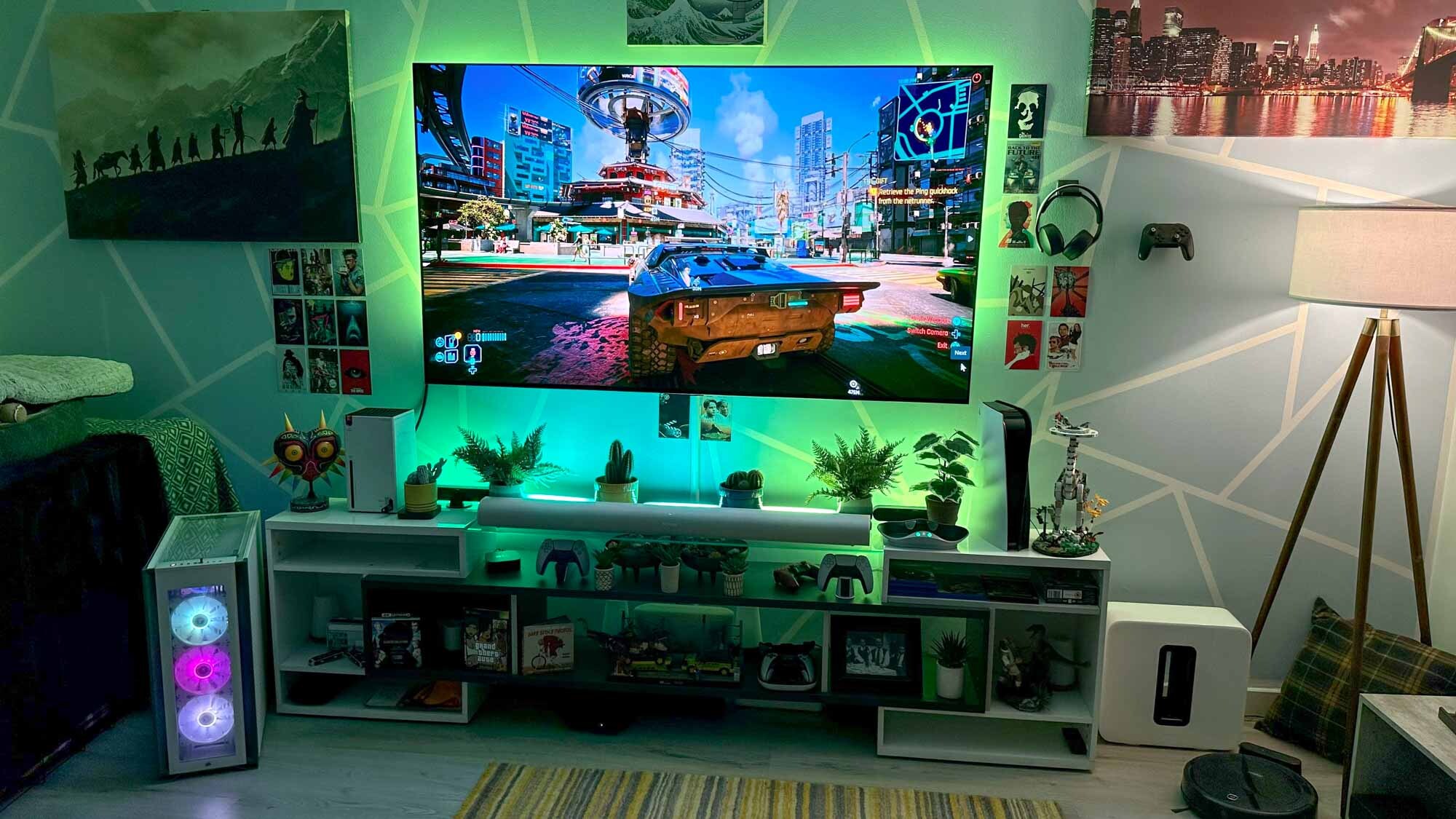


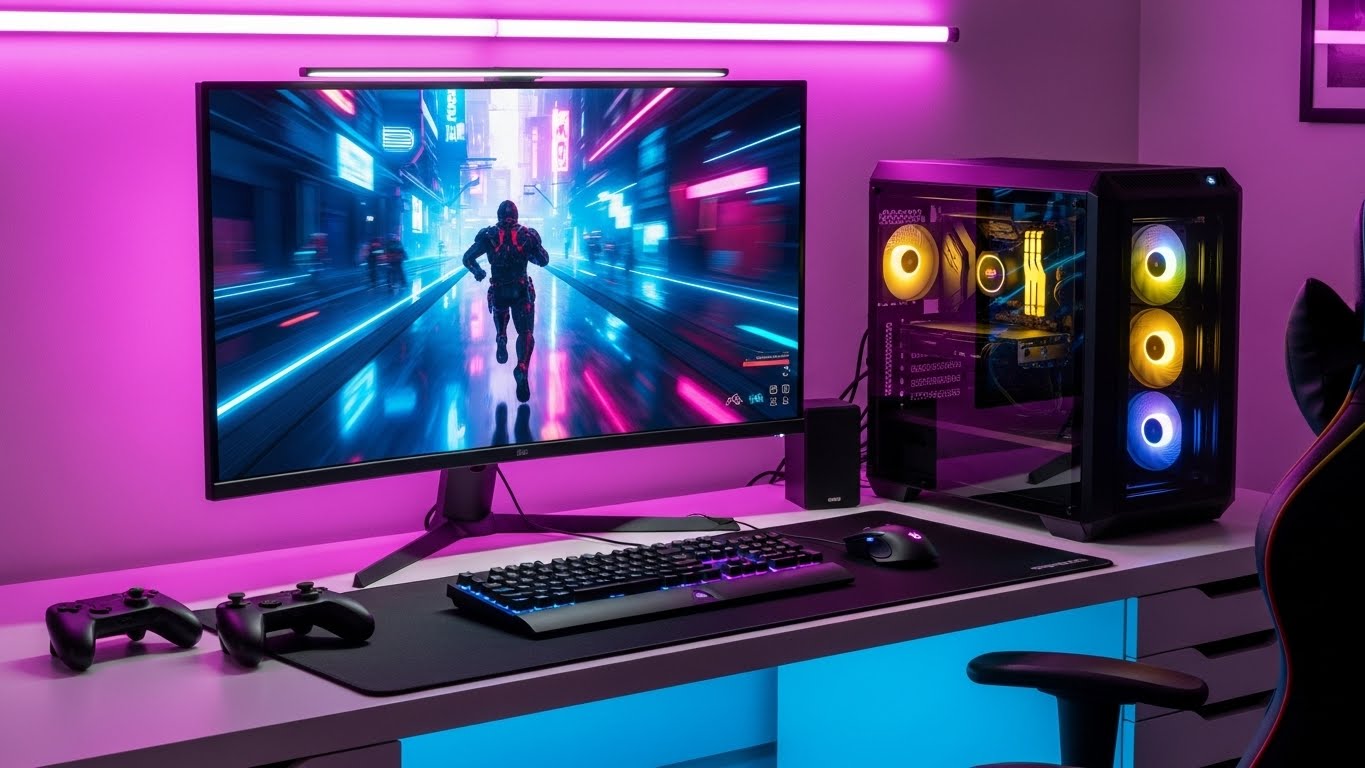
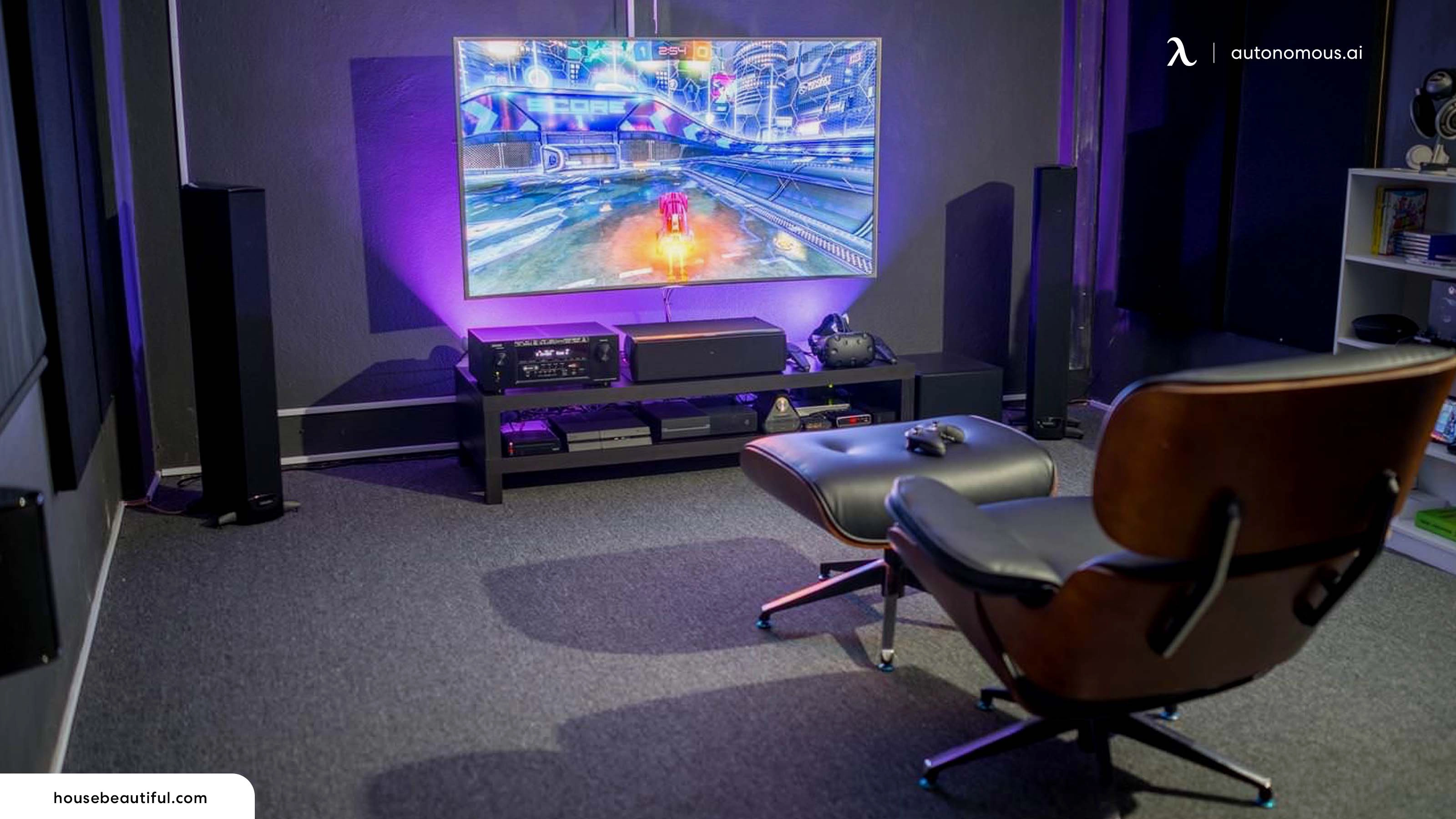
Optimal Living Room TV Gaming PC Setup For Immersive Gaming . An OLED Monitor Might Be The Best Upgrade You Can Make To Your PC . Pin By Kerry Christie On Game Room Design Gaming Room Setup Video . Best TV Gaming PC 2026 Complete Guide To Gaming TVs Best TV Gaming PC . How To Build A PC Gaming Setup With TV Build The Best Vr Gaming Setup1 5ce53545 227b 40c2 8b4a


Spectacular Gaming Room Interior Gaming Pc Gaming Desk Game Setup 1000 F 566487739 . Tv And Monitor Gaming Setup Google Search Design Per Ufficio In . How To Build A PC Gaming Setup With TV Best Gaming Computer Desks.webp. Best Gaming TVs For PC In 2026 Latest Models Only WhalesDev TV Photo Editing August 2024.webp. Best TV Gaming PC 2026 12 Systems Tested For Living Room Gaming Featured Image Gwkz39mb 300x210



Living Room PC Gaming Setup LG 86 4K 120Hz Large NanoCell TV YouTube . 1 Best U Images On Pholder Just Upgraded My Ultimate . Best 750 Gaming PC Build For 2026 Smooth Gaming PC Guru Best Dual Monitor Gaming Setup 2026 800x500 . Which Tv Is Best For Pc Monitor At Olivia Quinn Blog . The ULTIMATE Gaming Setup 2025 YouTube



Televisor Como Monitor De Pc Arcon . Building The Perfect Online Gaming Setup 99 Math Unlock The Power Of Gaming Setup . Gaming Desktop PC Guide 2026 Build The Ultimate Gaming Setup 2 2 3 . Lg Oled C2 Xbox Series X At Margaret Valez Blog . The Ultimate Gaming PC Build 2026 Guide By Xidax 1 Unnamed



Building The ULTIMATE Gaming Setup 2026 YouTube . The Complete Gaming Setup Guide From Low To High Budget LeetDesk Image. 15 Tv Setups Ideas Setup Game Room Design Pc Gaming Setup . Thinkpad Setup Meet The AI PC What It Is What It Does And How To Pc Setup Image For 5 Free Programs Every Pc Needs . My ULTIMATE Laptop Gaming Setup 1200 YouTube


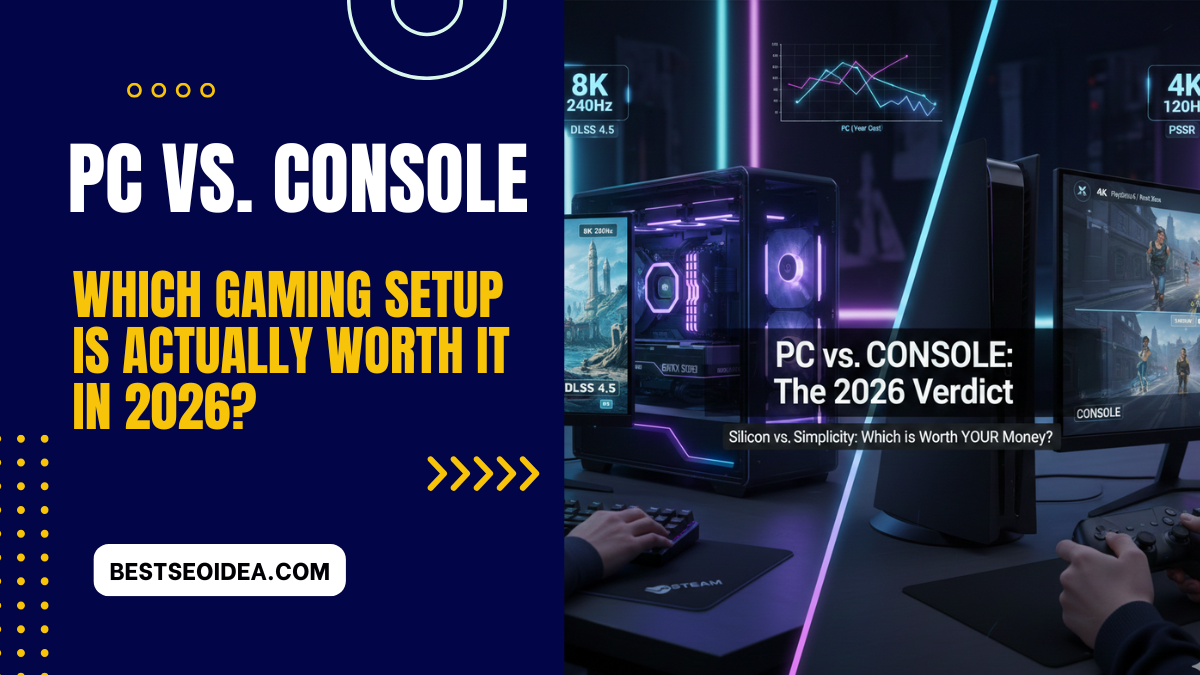
Best Budget Gaming Setup In 2026 Full Guide For Beginners Budget Friendly Gaming Setup In 2026 . Com Generated Images 6. The Best TVs For PC Gaming 2026 AVForums 3x3 . This Is My 2026 Gaming Setup YouTube . PC Vs Console Which Gaming Setup Is Actually Worth It In 2026 7 Best Ideas To Create 10

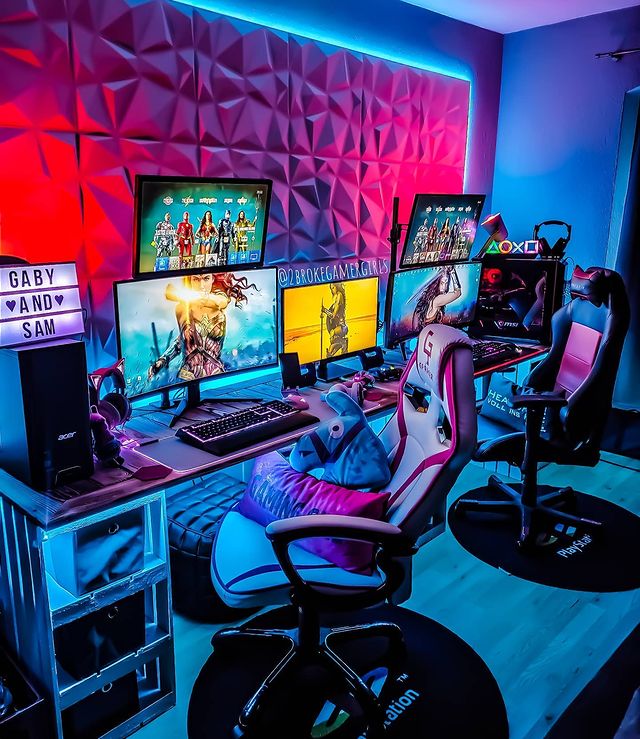
Complete Beginner S Guide To PC Gaming Best Gaming Setup 2025 1068x610 . Record Gaming Set Up At Susanne Drennan Blog Jonas Fabry Gaming Setup Scaled . Building Your Ultimate Full PC Gaming Setup Discover How Gaming Desk Setup . Best Console Gaming Setup Gaming Room Setup Guide Space. S Gaming Pc Setup 2024 Gear List PMCWF Gaming Setup Ideas Couple Gaming Setup 2