Navigating the vibrant world of Roblox on Xbox can be incredibly fun, but sometimes, gamers, especially those balancing work and family, seek a quieter, more focused experience. This comprehensive guide will walk you through exactly how to turn off chat on Xbox Roblox, ensuring a more peaceful gaming session. We understand that distractions or concerns about unfiltered communication can detract from the enjoyment, whether you are trying to unwind after a long day or manage a child's online interactions. Learn step-by-step how to adjust both your Xbox console's privacy settings and Roblox's in-game communication options. This article is designed for the modern gamer who values control, privacy, and an optimized play environment, helping you reclaim your gaming space without hassle. Discover solutions to common pain points and enhance your Roblox experience.
Related games- Guide to Screaming Roblox IDs How to Find and Use Them
- Guide to Roblox Script Executers 2026 How to Use Safely
- How Seven Scripts Roblox Can Boost Your Game Today
- Guide Whats The Iowa Game Score Live For Busy Gamers
- Guide to Roblox Item ID 1098291161 Explained
How do I quickly turn off all chat in Roblox on my Xbox?
To quickly turn off all chat in Roblox on your Xbox, your most direct route is through the Xbox console's privacy settings. Press the Xbox button, go to 'Profile & system' > 'Settings' > 'Account' > 'Privacy & online safety' > 'Xbox privacy'. Select 'View details & customize', then under 'Communication & multiplayer', set 'Others can communicate with voice, text, or invites' to 'Block'. This immediately restricts all incoming communication across your Xbox profile for all games, including Roblox.
Can I disable chat for my child's Roblox account specifically on Xbox?
Yes, absolutely. The most effective way to disable chat for a child's Roblox account on Xbox is by combining Xbox Family Settings with Roblox's website-based parental controls. On Xbox, manage your child's profile under Family Settings to block communication. Then, log into the child's Roblox account on the Roblox website, navigate to 'Parental Controls', enable 'Account Restrictions', and set 'Who can chat with me' options under 'Privacy' to 'No one'.
What's the difference between muting and blocking a player in Roblox on Xbox?
When you're playing Roblox on Xbox, muting a player means you simply won't see their text messages in the chat, but they can still see yours and interact with you in other ways. Blocking a player is a more comprehensive action: it stops all communication from them, prevents them from joining your game or seeing your profile, and they cannot send you friend requests. Blocking is best for persistent issues or unwanted interactions.
If I turn off chat, will it stop me from playing specific Roblox games that require communication?
Generally, turning off chat on Roblox for Xbox will not prevent you from playing most games. Millions of experiences are perfectly enjoyable without needing chat. However, highly collaborative or social role-playing games where communication is integral to the gameplay might become harder or less immersive. You'll still be able to join and move around, but you might miss out on specific instructions or social cues essential for those particular games.
How do I re-enable chat on Roblox if I change my mind later on Xbox?
To re-enable chat on Roblox for Xbox, you'll need to reverse the settings you initially changed. If you adjusted Xbox privacy settings, go back to 'Profile & system' > 'Settings' > 'Account' > 'Privacy & online safety' > 'Xbox privacy' and change 'Others can communicate with voice, text, or invites' from 'Block' to 'Friends' or 'Everyone'. If you changed Roblox in-game or website settings, navigate to 'Settings' > 'Privacy' and adjust 'Who can chat with me' back to your desired level (e.g., 'Friends' or 'Everyone').
Who benefits most from turning off chat in Roblox on Xbox?
The primary beneficiaries of turning off chat in Roblox on Xbox are parents seeking to create a safer online environment for their children by preventing unfiltered communication, and adult gamers who desire a more focused, distraction-free, or peaceful gaming experience to relax and unwind without unwanted social interactions. It caters to those prioritizing privacy and control over constant social engagement.
Why are my Roblox chat settings greyed out on Xbox?
If your Roblox chat settings appear greyed out on Xbox, it usually indicates that more restrictive settings are in place at a higher level, overriding your ability to change them in-game. This often happens due to Xbox Family Settings configured by a parent, or 'Account Restrictions' enabled on your Roblox account via the Roblox website. To adjust, the parent or account owner must modify those overarching privacy or parental control settings.
Where can I find additional support if I'm still having trouble with Roblox chat on Xbox?
If you're still having trouble with Roblox chat on Xbox, you can find additional support by visiting the official Roblox Support page on their website (support.roblox.com) or the Xbox Support website (support.xbox.com). Both platforms offer extensive knowledge bases, troubleshooting guides, and options to contact customer service directly for personalized assistance with specific account or console issues.
For many US gamers, gaming isn't just a hobby; it's a cherished way to unwind, connect with friends, or build new skills after a demanding day. With 87% of US gamers playing regularly, often dedicating 10+ hours a week, finding that perfect balance between immersive fun and avoiding distractions is key. When it comes to Roblox on Xbox, the open communication channels can sometimes be a source of noise, unwanted interactions, or even a concern for parents monitoring younger players. If you've found yourself asking, 'How do I turn off chat on Xbox Roblox?' you're not alone. Busy adults want control over their digital spaces, ensuring their gaming time is truly their own, free from interruptions or discomfort. This guide is your trusted resource, designed by gamers for gamers, to help you take charge of your Roblox experience on Xbox. We'll cut through the technical jargon and provide clear, actionable steps to mute the chatter, enhance your focus, and make your time in Roblox exactly what you want it to be.
We know your time is valuable. You want solutions that work, quickly and effectively, so you can get back to building, exploring, or simply relaxing. This article dives deep into every possible setting, from console-level privacy adjustments to in-game Roblox options. We’ll cover everything from temporarily muting a single player to completely disabling chat across all your Roblox experiences on your Xbox. Whether you're a parent looking to safeguard your child's online interactions or a seasoned player seeking a more serene environment, we've got you covered. Let's optimize your Roblox world together.
How Can I Turn Off Chat in Roblox Through Xbox Settings?
The first line of defense for controlling communication in Roblox on your Xbox console lies within the Xbox's own privacy and online safety settings. These settings are powerful because they apply system-wide, affecting all games you play on your Xbox, including Roblox. This is especially useful for parents or anyone who wants a broad-stroke approach to managing online interactions. By adjusting these settings, you can limit who can communicate with you, or even disable text and voice chat entirely.
Here are the steps to configure your Xbox privacy settings:
- From the Xbox Home screen, press the Xbox button on your controller to open the Guide.
- Navigate to 'Profile & system' (your gamertag icon).
- Select 'Settings'.
- Go to 'Account' and then 'Privacy & online safety'.
- Choose 'Xbox privacy'.
- Select 'View details & customize'.
- From here, you'll want to focus on two main areas:
Communication & multiplayer: This section allows you to control who can communicate with you. You can set 'Others can communicate with voice, text, or invites' to 'Friends' or 'Block'. Selecting 'Block' will effectively turn off all incoming chat for games like Roblox.
Game content: While less directly related to chat, you can review settings here to ensure the content shown aligns with your preferences, which can indirectly influence who you interact with.
- After making your desired changes, ensure you save them. Remember, these changes apply globally to your Xbox profile.
This method is robust for preventing unwanted communication across your entire Xbox gaming experience, providing a consistent barrier against unsolicited chats.
Can I Disable Roblox In-Game Chat Directly Within Roblox on Xbox?
Yes, while Xbox settings offer a broad approach, Roblox itself provides in-game options to manage chat, giving you more granular control over specific experiences or individual players. These settings are crucial for gamers who want to maintain some level of social interaction but wish to curb excessive or inappropriate chat. Roblox is renowned for its user-generated content, and with millions of experiences, the chat dynamics can vary wildly. Understanding these in-game tools empowers you to tailor your experience on a game-by-game or player-by-player basis.
Here’s how to access and modify Roblox’s in-game communication settings:
Launch Roblox on your Xbox and select an experience to join.
Once in an experience, press the 'View' button (the one with two squares) on your Xbox controller to bring up the Roblox menu.
From the menu, navigate to 'Settings' (the gear icon).
Look for 'Privacy' settings within this menu. The options here might vary slightly depending on updates, but generally, you'll find:
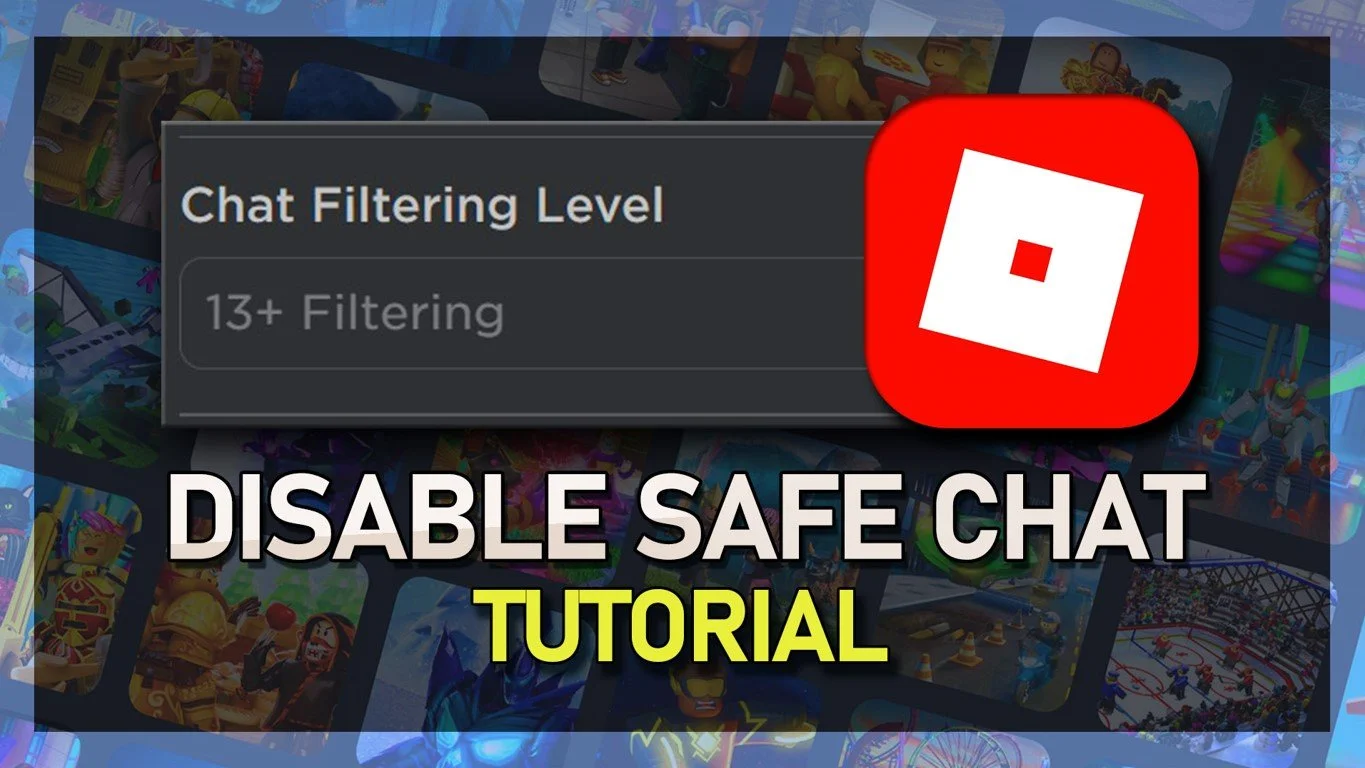
Who can chat with me in-app: This setting allows you to choose between 'Everyone', 'Friends', or 'No one'. Selecting 'No one' will turn off chat within Roblox for your account.
Who can chat with me in-game: Similar to the above, this controls who can send you messages while you are actively playing an experience. Again, 'No one' is your option for full chat disable.
Save any changes you make. These settings are specific to your Roblox account.
It’s important to remember that for younger players, parental controls on the Roblox website or through the Xbox family settings might override these in-game options, offering an additional layer of safety.
What are Roblox Parental Controls and How Do They Affect Chat on Xbox?
For many adults balancing gaming with family life, parental controls are invaluable tools. Roblox offers robust parental control features that extend beyond the Xbox console, providing a comprehensive safety net for younger players. These controls are managed primarily through the Roblox website via a parent's account, allowing you to set communication limits, content restrictions, and spending caps. Given that social gaming is a significant trend, with platforms like Roblox facilitating vast online interactions, parental oversight is more important than ever. These settings are designed to protect children from inappropriate content and interactions, a common pain point for parents.
Here's how Roblox parental controls impact chat:
Account Restrictions: By enabling Account Restrictions on a child's Roblox account via the website, all forms of communication (chat, private messages, in-experience chat) can be severely limited or entirely disabled. This ensures they only access a curated list of experiences and cannot engage in freeform chat.
Privacy Settings Override: Parental controls often take precedence over in-game privacy settings. For example, if a parent sets communication to 'No One', a child cannot simply change it back within the Xbox app or the Roblox game.
Age Guidelines: Roblox uses age guidelines (e.g., Age 9+, Age 13+) which automatically adjust default chat settings to be more restrictive for younger users. Parents can further tighten these.
To set up or review these controls, you'll need to log into the Roblox website with the parent's account associated with the child's profile. This centralized management system offers peace of mind for parents, ensuring a safer and more controlled environment for their children's gaming on Xbox and other platforms.
How Do I Mute an Individual Player in Roblox on Xbox?
Sometimes, you don't want to turn off chat entirely but rather deal with a single disruptive player. Roblox provides the option to mute or block individual users directly within an experience. This is incredibly useful for managing specific, isolated incidents without impacting your overall communication preferences. Muting a player means you won't see their chat messages, while blocking goes a step further, preventing them from sending you messages, joining your game, or finding your profile. This targeted approach aligns with a gamer's need for quick solutions to specific problems, allowing you to quickly resolve an issue and get back to your game.
To mute or block an individual player on Roblox via Xbox:
While in a Roblox experience, identify the player you wish to mute or block. Their gamertag is usually visible above their character or in the in-game chat log.
Open the player list. This is often done by pressing the 'View' button on your controller, or by interacting with the in-game UI.
Find the player's gamertag in the list. Select it.
A menu should appear with options such as 'Mute' or 'Block'.
Mute: Selecting 'Mute' will prevent you from seeing their chat messages. They can still see yours and interact with you in other ways.
Block: Selecting 'Block' is more comprehensive. It stops all communication, prevents them from joining your game, and makes your profile invisible to them. This is often the best option for persistent or harassing players.
Confirm your choice. The player will typically not be notified that they have been muted or blocked.
This feature empowers you to handle specific issues gracefully, ensuring your social gaming experience remains positive and distraction-free without resorting to a complete chat lockdown.
Will Turning Off Chat Affect My Ability to Play Roblox Games on Xbox?
Turning off chat on Roblox, whether through Xbox settings or in-game options, generally will not prevent you from playing or accessing most Roblox experiences. The core gameplay mechanics of Roblox largely rely on interaction with the game environment and other players' actions, not strictly on text or voice chat. However, it's crucial to understand that certain experiences might have a heavier reliance on communication for specific gameplay elements, like team coordination or social role-playing. For the average gamer who just wants to explore, build, or casually interact, disabling chat is unlikely to hinder their enjoyment. For those who value social play, particularly in games requiring coordinated effort, understanding this balance is key.
Consider these points:
Most experiences: You can fully enjoy millions of Roblox games without needing to chat. Building games, obstacle courses (obys), and exploration-focused titles are perfectly playable without chat.
Communication-heavy games: In experiences like intricate role-playing games, competitive team games, or social hangouts that rely heavily on discussion, turning off chat might reduce the depth of your engagement. You might miss instructions, lore, or tactical calls.
Private servers/friends: If you're playing with a group of friends on a private server and rely on external communication (like Discord), turning off in-game chat can actually enhance focus by removing redundant or distracting messages.
Ultimately, the impact depends on your preferred playstyle and the specific Roblox experiences you enjoy. For many adult gamers seeking relaxation and immersion, a chat-free environment is a benefit, not a drawback.
What If I Can't Find the Chat Settings in Roblox on My Xbox?
Sometimes, technology can be tricky, and settings might seem to disappear or be in unexpected places. If you're having trouble locating the chat settings for Roblox on your Xbox, there are a few common reasons and troubleshooting steps you can take. Remember, game interfaces and console menus are periodically updated, so what was there last month might have subtly shifted this month. This can be a pain point for busy gamers who just want things to work.
Here’s what to check:
Roblox Updates: Ensure your Roblox application is fully updated. Developers frequently push out updates that can change UI layouts or relocate settings. A quick check for updates via the Xbox dashboard or the Microsoft Store can resolve this.
Xbox System Updates: Similarly, ensure your Xbox console's operating system is up to date. System-level changes can sometimes affect how app settings are presented or accessed.
Correct Menu Navigation: Double-check that you are pressing the correct button (typically the 'View' button) to bring up the in-game Roblox menu, not the Xbox guide menu. Then, carefully navigate to 'Settings' (gear icon) and 'Privacy'.
Parental Account Overrides: If you are playing on a child's account that has parental controls enabled (either through Xbox Family Settings or Roblox website), certain privacy options, including chat settings, might be greyed out or completely absent, as they are managed by the parent account.
Roblox Website Check: As a last resort, log into your Roblox account (or the child's account) on the Roblox website via a web browser. The website often provides a more comprehensive and stable interface for managing all account settings, including privacy and communication preferences, which then sync with the Xbox app.
By systematically checking these points, you should be able to locate and adjust the necessary chat settings to customize your Roblox experience.
Can I Use Voice Chat in Roblox on Xbox, and How Do I Control It?
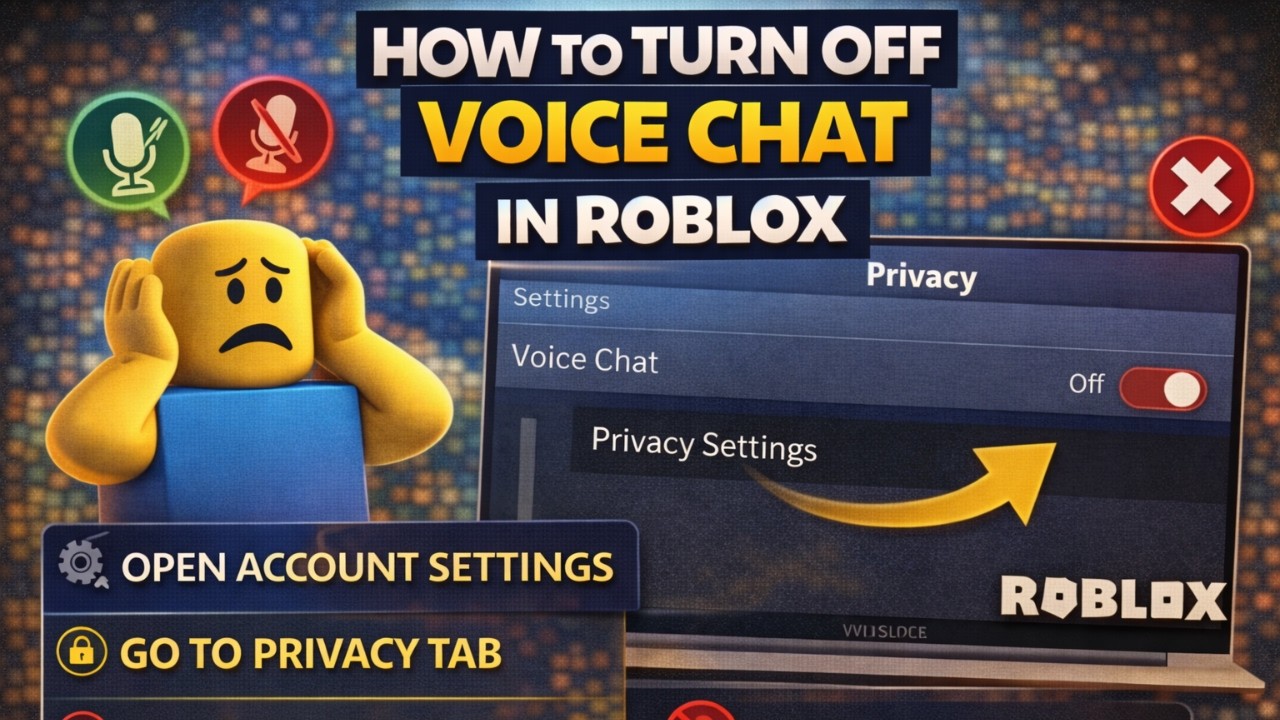
Roblox introduced Spatial Voice Chat, an opt-in feature that allows users to communicate via voice within certain experiences. This brings a new dimension to social gaming, making interactions feel more natural and immersive, much like talking in real life as you move closer or further from others. For adults, this can be a fun way to connect, but for parents, it's another communication channel to manage. As of recent trends, social gaming via voice platforms like Discord and in-game options like Spatial Voice is growing, so understanding how to control it on Xbox is vital.
Controlling Spatial Voice Chat on Xbox Roblox involves a few steps:
Age Verification: Spatial Voice Chat is currently available for users aged 13 and older who have verified their age with a valid ID on the Roblox website. Without age verification, this feature will not be accessible.
Opt-In on Roblox Website: Even after age verification, Spatial Voice is an opt-in feature. You must go to the 'Privacy' settings of your Roblox account on the Roblox website (not the Xbox app) and toggle 'Enable Voice Chat' ON or OFF.
In-Experience Control: When in a voice-enabled Roblox experience on Xbox, you will see a microphone icon above your avatar. You can click this icon to mute or unmute yourself. Other players with mic icons can also be muted individually.
Xbox Privacy Settings: Your Xbox console's 'Communication & multiplayer' settings (as detailed earlier) also influence voice chat. If you've set 'Others can communicate with voice, text, or invites' to 'Block', it will prevent voice chat from coming through from non-friends, regardless of Roblox's settings.
Managing Spatial Voice Chat provides another layer of control, ensuring you decide when and how you engage in verbal communication within the Roblox universe on your Xbox.
How Can I Ensure My Child's Chat is Always Off in Roblox on Xbox?
Ensuring a child's chat is consistently off in Roblox on Xbox requires a multi-layered approach, combining the robust family settings of the Xbox console with the specific parental controls offered by Roblox. This dual-platform strategy is the most effective way to create a safe and controlled environment for young gamers, addressing a primary concern for many parents. With children spending significant time on platforms like Roblox, proactive management of communication is crucial for their online safety and well-being.
Here’s a step-by-step approach to ensure maximum chat restriction:
Xbox Family Settings:
On your Xbox, go to 'Profile & system' > 'Settings' > 'Account' > 'Family settings' > 'Manage family members'.
Select your child's profile.
Go to 'Privacy & online safety' > 'Xbox privacy' > 'View details & customize'.
Under 'Communication & multiplayer', set 'Others can communicate with voice, text, or invites' to 'Block'. This is the most restrictive setting and applies across all games on the Xbox.
Roblox Website Parental Controls:
Log in to your parent account on the Roblox website (www.roblox.com).
Navigate to 'Settings' (gear icon in the top right) > 'Parental Controls'.
Enable 'Account Restrictions' to limit access to only age-appropriate experiences and disable all chat.
Under 'Privacy', set 'Who can chat with me in-app' and 'Who can chat with me in-game' to 'No One'. If Account Restrictions are on, these may be automatically set or greyed out.
Ensure that 'Spatial Voice Chat' is toggled OFF under Privacy settings for the child's account.
Regular Review: Periodically review these settings as Roblox and Xbox update their platforms. It's good practice to check them monthly to ensure they remain as you configured them, especially if your child uses different devices for Roblox.
By implementing these robust controls, you can confidently allow your child to enjoy Roblox on Xbox, knowing their communication is safely managed.
What are the privacy implications of disabling chat on Roblox Xbox?
Disabling chat on Roblox for Xbox carries significant privacy benefits, especially in today's digital landscape where online interactions can sometimes lead to unexpected data sharing or exposure. For gamers who prioritize a secure and private experience, taking control of chat settings is a fundamental step. This is particularly relevant for busy adults who might not have the time to constantly monitor in-game conversations or for parents safeguarding their children's online presence. Privacy settings are not just about avoiding spam; they're about controlling your digital footprint and ensuring a safer gaming environment.
The key privacy implications include:
Reduced Exposure to Unsolicited Information: By limiting chat, you reduce the chances of encountering or accidentally sharing personal information with strangers. This protects against potential phishing attempts or social engineering tactics.
Protection from Inappropriate Content: Chat filters, while present, aren't perfect. Disabling chat provides a strong barrier against exposure to offensive language, harassment, or age-inappropriate discussions that can unfortunately occur in online public spaces.
Enhanced Data Security: Less interaction with unknown players means fewer opportunities for malicious links or requests that could compromise your account security. While Roblox has security measures, personal vigilance remains the best defense.
Control Over Social Interactions: For adults seeking relaxation, controlling who can contact them is a form of digital wellness. It allows for a more focused and less anxiety-inducing gaming experience, aligning with the desire to escape daily stresses.
Compliance with Parental Safety Standards: For children, disabling chat ensures compliance with parental decisions regarding online safety, minimizing risks associated with unsupervised communication in a large online community.
In essence, disabling chat is a powerful privacy tool, putting you in command of your online interactions and contributing to a safer, more enjoyable Roblox experience on Xbox.
Are there any Roblox experiences where chat cannot be turned off on Xbox?
While most Roblox experiences respect your privacy and communication settings, it's worth noting that some experiences, particularly those designed around social interaction, role-playing, or specific instructional purposes, might integrate chat deeply into their core mechanics. In such cases, completely removing the chat interface or functionality might not be possible without significantly altering the experience itself. However, even in these scenarios, your global Xbox privacy settings and Roblox account privacy settings (especially 'Who can chat with me') will still largely dictate what you see and who can contact you.
Key points to consider:
Core Gameplay Integration: Certain experiences, like interactive storytelling or collaborative building games, might use chat as a primary means of progression or interaction. Disabling chat could make these specific experiences difficult or impossible to fully engage with.
System-Level Overrides: Even if an experience *wants* to force chat, your Xbox privacy settings (e.g., setting 'Others can communicate' to 'Block') and your Roblox account-level privacy settings (e.g., 'Who can chat with me in-game' set to 'No one') should still override most in-experience chat attempts, preventing messages from reaching you directly.
Visual vs. Functional Chat: In some rare cases, you might still see a chat *window* or visual elements related to chat, but if your settings are correctly configured, no actual messages will appear, or you won't be able to send any. It's visual noise without the communication function.
Age-Restricted Experiences: Experiences designed for older audiences (13+) might default to more open communication. However, parental controls or individual account privacy settings should still apply if configured.
For the vast majority of Roblox experiences on Xbox, your proactive steps to disable chat will be effective. If you encounter an experience where you feel chat is still active despite your settings, it's usually a visual anomaly or a temporary glitch that a quick restart of Roblox or your Xbox can fix, or an indication that you need to tighten your Xbox privacy settings further.
Navigating the rich and expansive world of Roblox on Xbox should be an experience tailored to your preferences, free from unwanted distractions or concerns. For busy gamers balancing work, family, and personal time, control over your digital environment is paramount. We've explored comprehensive strategies, from Xbox console privacy settings to in-game Roblox options and robust parental controls, all designed to empower you to turn off chat and reclaim your gaming peace. Whether you're muting an individual player, disabling all communication for a focused session, or safeguarding a child's online interactions, you now have the tools and knowledge to customize your Roblox journey. Remember, a more focused and private gaming experience is just a few settings tweaks away.
What's your biggest gaming challenge when balancing life and play? Comment below!
FAQ Section
How do I stop all messages on Roblox Xbox?
To stop all messages on Roblox Xbox, first adjust your Xbox privacy settings under 'Profile & system' > 'Settings' > 'Account' > 'Privacy & online safety' > 'Xbox privacy' > 'View details & customize' and set 'Others can communicate with voice, text, or invites' to 'Block'. Additionally, within Roblox, go to 'Settings' > 'Privacy' and set 'Who can chat with me in-game' to 'No one'.
Can parents control Roblox chat on Xbox?
Yes, parents can control Roblox chat on Xbox through a dual approach. Utilize Xbox Family Settings to restrict communication globally for child profiles. Furthermore, log into the child's Roblox account on the Roblox website to enable 'Account Restrictions' and set all privacy options, including 'Who can chat with me', to 'No one'.
Will turning off Roblox chat affect multiplayer games?
Turning off Roblox chat will not prevent you from joining or playing multiplayer games on Xbox. However, for games that heavily rely on coordinated text or voice communication (like some competitive or role-playing experiences), your engagement might be limited as you won't see or be able to send messages. Core gameplay functionality typically remains unaffected.
How do I mute annoying players on Roblox Xbox?
To mute an annoying player in Roblox on Xbox, while in an experience, press the 'View' button on your controller to bring up the Roblox menu or player list. Select the player's gamertag from the list, and then choose the 'Mute' or 'Block' option. 'Block' provides a more permanent solution, preventing all future interactions.
Why would I want to turn off chat in Roblox?
Gamers often turn off chat in Roblox for several reasons, including reducing distractions for focused gameplay, protecting children from inappropriate or unfiltered communication, enhancing personal privacy by limiting unsolicited interactions, and creating a more relaxed, stress-free gaming environment, especially for adults balancing busy lives.
Are Roblox chat filters effective on Xbox?
Roblox implements chat filters to block inappropriate content, but no filter is 100% effective. While they help, a determined user might find ways around them. For complete peace of mind, especially for younger players, combining chat filters with robust parental controls and disabling chat altogether provides the highest level of protection on Xbox.
Can I turn off voice chat specifically in Roblox on Xbox?
Yes, to control Spatial Voice Chat in Roblox on Xbox, you must first be 13+ and have verified your age on the Roblox website. Then, on the Roblox website under 'Privacy' settings, you can toggle 'Enable Voice Chat' ON or OFF. Your Xbox privacy settings for voice communication will also apply system-wide.
Parental controls for Roblox Xbox chat, Muting individual players in Roblox, Xbox privacy settings for communication, Disabling in-game chat for Roblox, Enhancing focus on Roblox gaming, Managing online interactions on Xbox.
35


Xbox Roblox Chat How To Turn It Off . Want To Disable Roblox Captures Here S How . Xbox Roblox Chat How To Turn It Off . How To Turn Off Chat On Roblox Xbox Step By Step YouTube . Xbox Roblox Chat How To Turn It Off




How To Remove The Chat Feature In Roblox On Xbox YouTube . Xbox Roblox Chat How To Turn It Off . Roblox Chat Off How Do I Do It For 2026 . Xbox Roblox Chat How To Turn It Off . Xbox Roblox Chat How To Turn It Off


Want To Disable Roblox Captures Here S How . How To Turn Off Safe Chat On Roblox 2026 YouTube . Xbox Roblox Chat How To Turn It Off . Xbox Roblox Chat How To Turn It Off . Want To Disable Roblox Captures Here S How
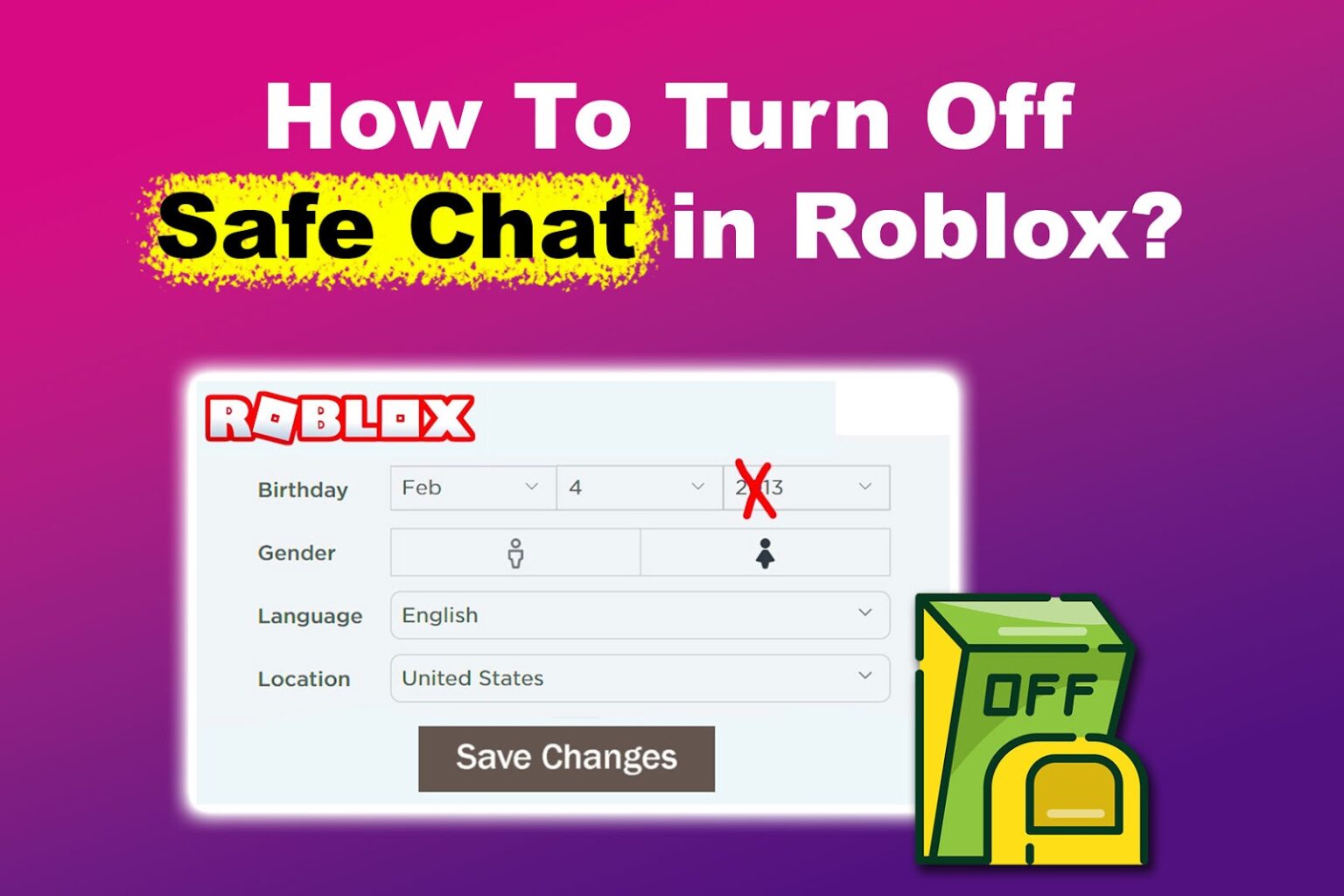

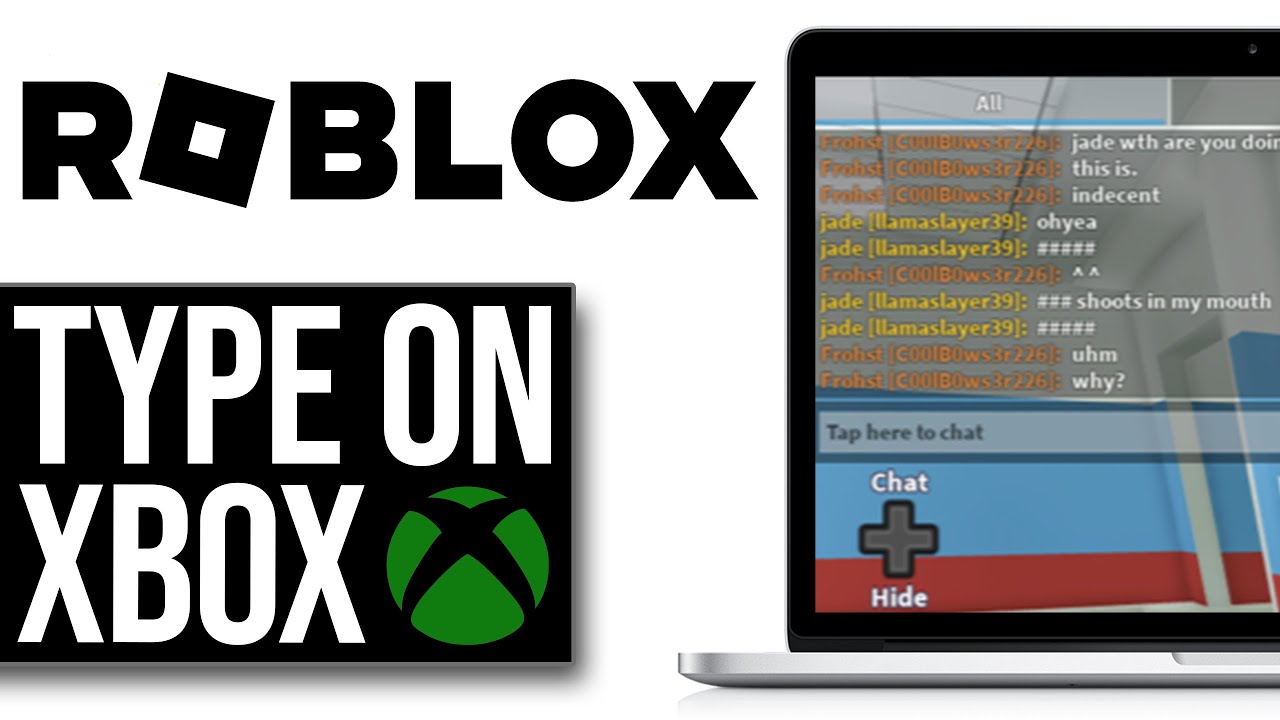


Roblox Chat Off How Do I Do It For 2026 How Turn Off Safe Chat Roblox 1536x1024 . Roblox Chat Off How Do I Do It For 2026 How To Turn On OFF Safe Chat In Roblox. Xbox Roblox Chat How To Turn It Off . Xbox Roblox Chat How To Turn It Off . Xbox Roblox Chat How To Turn It Off

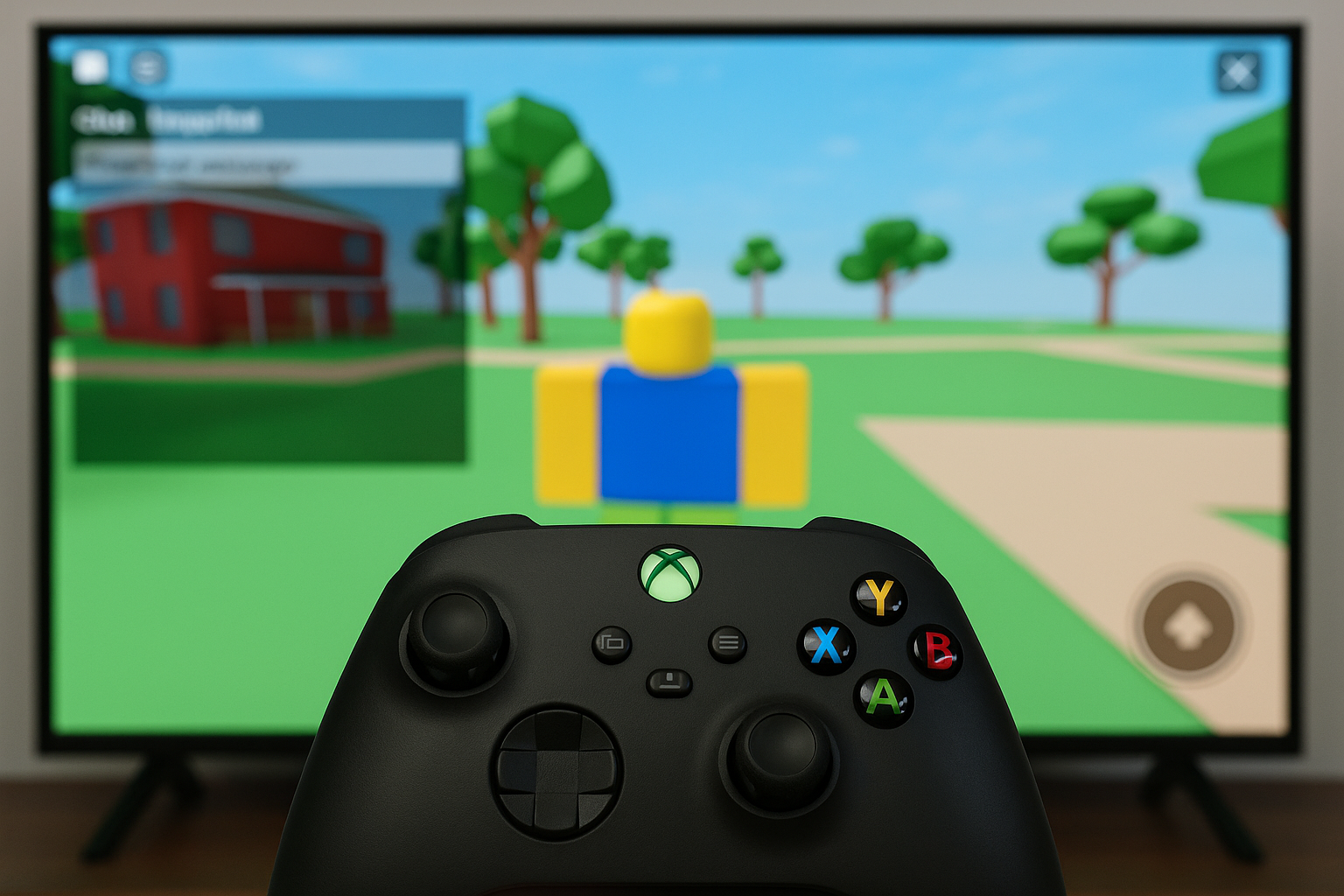


How To Turn On Voice Chat In Roblox Xbox H Ng D N Chi Ti T V Nh Ng . Close Or Disable Roblox Chat On Xbox Quick Toggle And Settings Image 249 . Xbox Roblox Chat How To Turn It Off . Xbox Roblox Chat How To Turn It Off . Xbox Roblox Chat How To Turn It Off


Roblox Chat Off How Do I Do It For 2026 . Xbox Roblox Chat How To Turn It Off . Xbox Roblox Chat How To Turn It Off . Roblox Voice Chat Get Talking Now . Roblox Voice Chat Get Talking Now


Xbox Roblox Chat How To Turn It Off Disable Safe Chat . Xbox Roblox Chat How To Turn It Off A58eb 1920 . How To Turn Off Voice Chat In Roblox Disable VC Mic STOP Random . How To Turn Off Voice Chat On Roblox Easy Guide Roblox Voice Chat . Roblox PS5 Chat Your Friendly Guide